
Installation
Download Zoiper installer from here. Keep all default settings when installing.
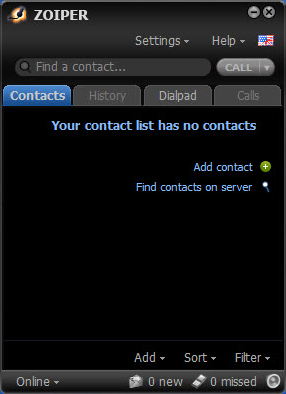
Once installed, launch Zoiper. Main window will come up. Select Settings Menu > Create a New Account.
Once there, fill the Username and Password you received. You don’t need to enter anything in the Domain field.
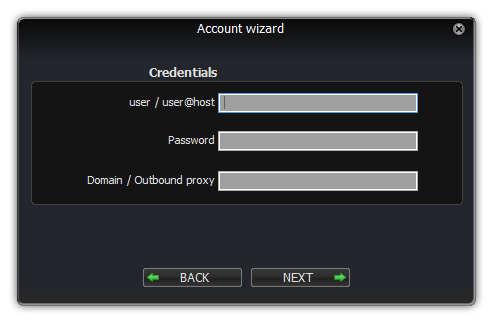
Once info has been filled, click on Next. In the next window, just keep the default Account Name, and click on Next.
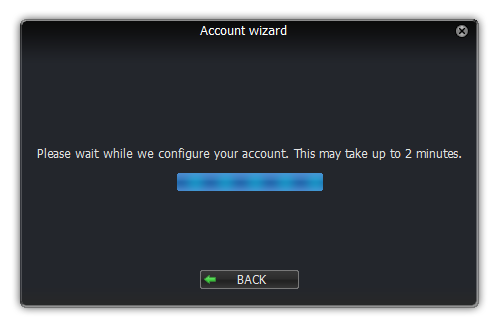
Wait for some minutes while your account is configured. If you’re connected to the internet, after some few seconds, you’ll receive a success message.
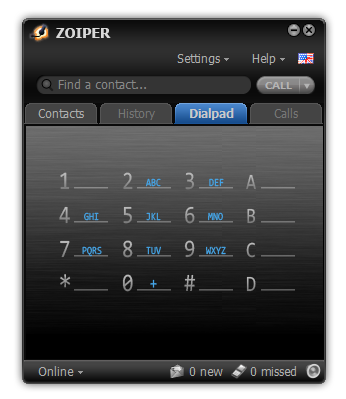
Once you’re back on the main screen, you can start placing calls. Just fill the number in the Find a Contact… field, and type Enter to start dialing. You can also select the Dialpad tab at the top, and use the dialpad with your mouse.
Usage
To dial a number, simply enter it into the Find a contact… field and hit Enter on your keyboard (or alternatively you can click the CALL button)

To check your voicemail box, you can call *95. Alternatively, you can also click on the Messages button, at the bottom of the main window.

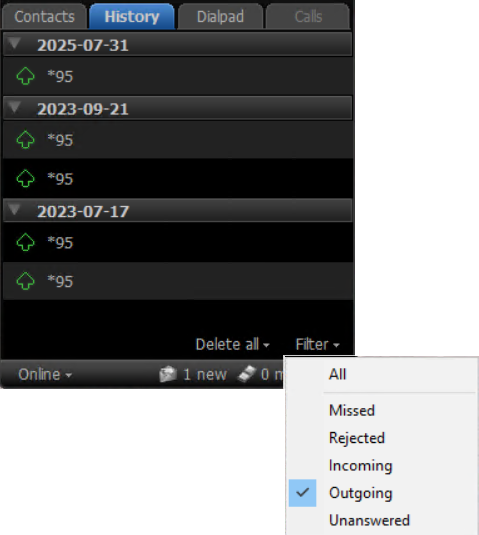
You can check your entire call history from the History tab at the top. Once there, you can filter the calls by Incoming, Outgoing or Missed, from the menu at the bottom right.
Once you’re on a call, you’ll see the call controls on the Call tab. This should appear by default when you place or answer a call, but you can return there anytime from the tab on the top right. Main controls available here are: Hang Up to disconnect the call, Hold to put the call on hold, and the Volume levers, to adjust the volupe you perceive and the volume the other party perceives from you.

Please note that the Transfer and Conference functionalities are not available in the free version of Zoiper, and an additional purchase from their website is required for those functions to be available. Despite this, you can still transfer calls and create conferences with the dialpad:
- To transfer a call, go to Dialpad tab, then enter # #, and then the extension where you want to transfer the call. Per example, # # 2 0 1. Caller will be transferred and you’ll see your call is disconnected.
- To create a conference call, simply transfer the call to one of your conference room extensions. Then you can jump in there, or invite anyone else. Please reach to us if you don’t have / don’t know about your internal conference room extension yet.